What Claude can do with your onetapvote account
MCP (Model Context Protocol) is the standard way for AI assistants to use outside tools. onetapvote runs an MCP server, so once Claude is connected it can look at your account and act on it, the same way it reads files or searches the web.
Everything happens on the account that owns the API key you connect. Claude sees the same polls you see on your dashboard, and nothing else.
| You ask | Claude uses | Plan |
|---|---|---|
| "How are my polls doing this month?" | get_account_stats | Any plan |
| "Show me my latest polls" | list_polls | Any plan |
| "What did people answer in the lunch poll?" | get_poll_results | Any plan |
| "Make a yes/no poll about moving the demo to 3pm" | create_poll | Pro or Business |
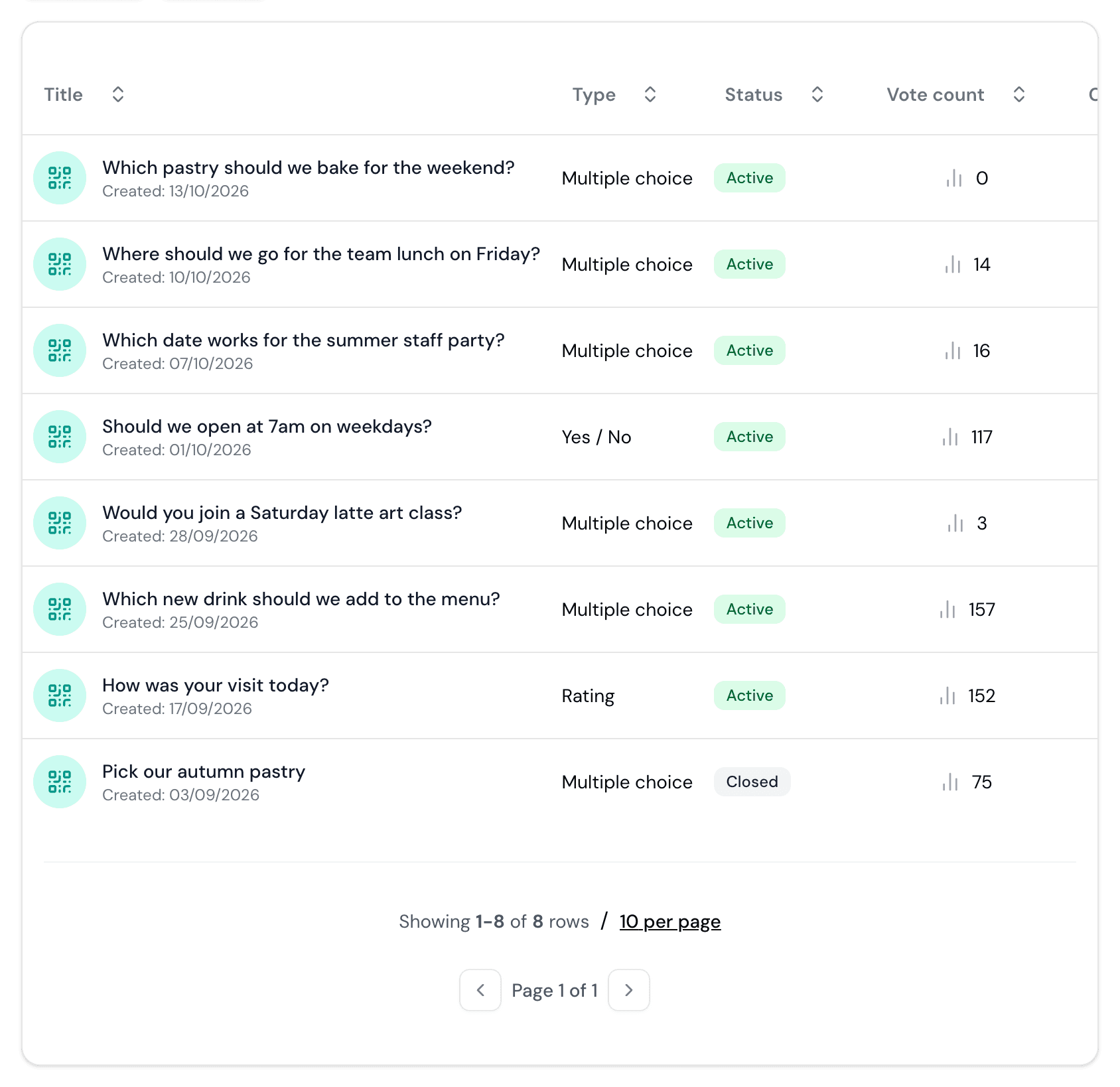
Step 1: create an API key
- 1
Open the API settings
Sign in to onetapvote and go to Settings → API (/app/configure?tab=api). Any plan can create a key.
- 2
Create and name the key
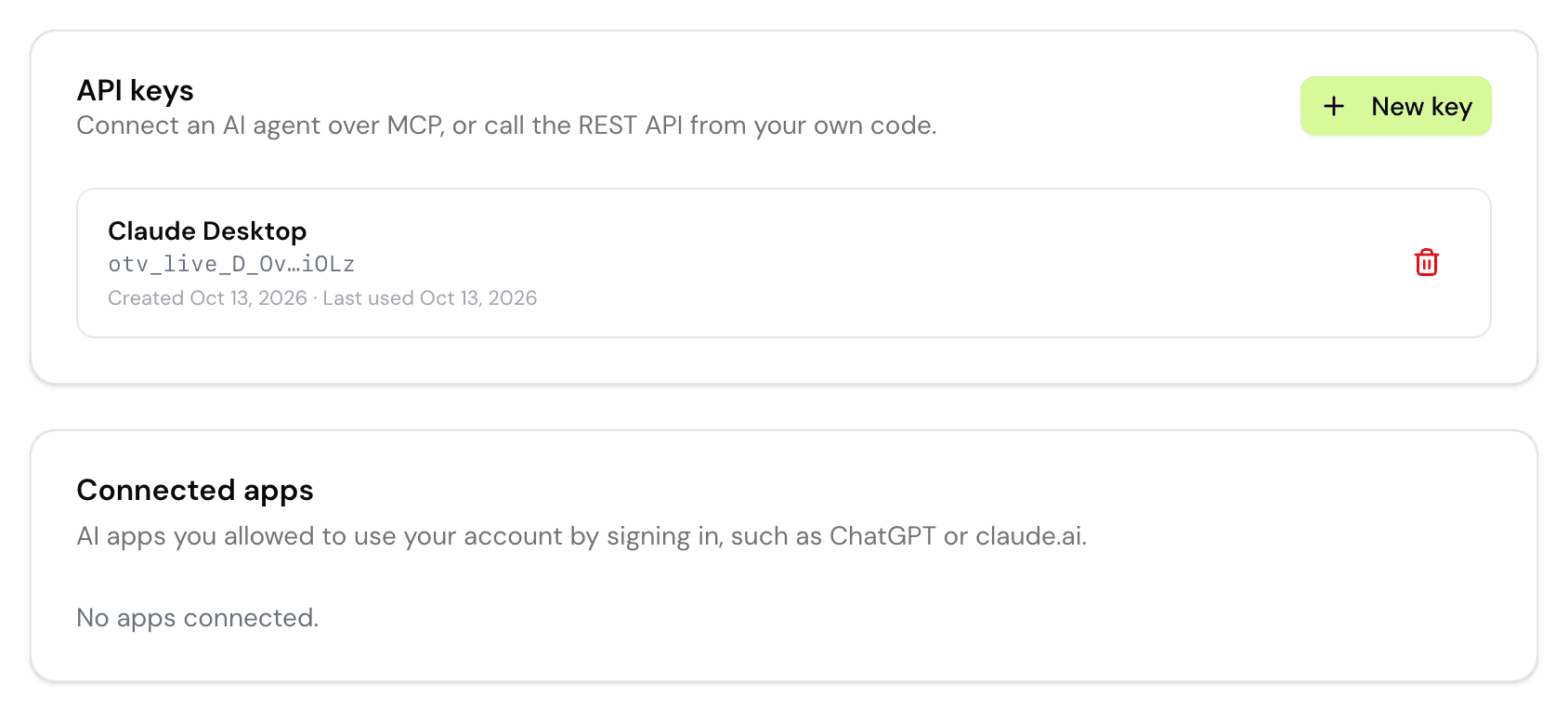
Click New key and give it a name you'll recognise later, such as "Claude on my laptop". One key per device or tool makes it easy to switch one off without breaking the others.
- 3
Copy it straight away
The key starts with otv_live_ and is shown only once. Paste it into the setup below. If you lose it, revoke it and create a new one.
Step 2a: connect Claude Code
In Claude Code, the whole setup is one command. Run it in your terminal with your own key in place of otv_live_YOUR_KEY:
claude mcp add --transport http onetapvote \
  https://onetapvote.com/api/mcp \
  --header "Authorization: Bearer otv_live_YOUR_KEY"
Step 2b: connect Claude Desktop
Claude Desktop reaches online MCP servers through a small helper called mcp-remote, which runs with Node.js. If you don't have Node.js, install the LTS version from nodejs.org first.
- 1
Open the config file
In Claude Desktop, open Settings → Developer → Edit Config. The file is claude_desktop_config.json (on a Mac in ~/Library/Application Support/Claude/, on Windows in %APPDATA%\Claude\).
- 2
Add onetapvote
Paste the block below. If the file already has an mcpServers section, add only the onetapvote entry inside it. Replace otv_live_YOUR_KEY with your key.
- 3
Restart Claude Desktop
Quit it fully and open it again. onetapvote now appears in the tools menu of a new chat.
{
  "mcpServers": {
    "onetapvote": {
      "command": "npx",
      "args": [
        "mcp-remote",
        "https://onetapvote.com/api/mcp",
        "--header",
        "Authorization:${AUTH}"
      ],
      "env": { "AUTH": "Bearer otv_live_YOUR_KEY" }
    }
  }
}
Step 3: prompts to try
Talk to Claude the way you'd talk to a colleague who has your dashboard open. It picks the right tool on its own.
Monthly check-in
"How did my polls do this month? Which one got the most votes?"
Any plan
Results to share
"Look at the results of my lunch poll and write a two-line summary I can post in Slack."
Any plan
Find the quiet ones
"Which of my active polls have almost no votes? Suggest how to reword them."
Any plan
Quick team poll
"Create a yes/no poll: should Friday's demo move to 3pm? Give me the link and the QR code."
Pro
Draft, then publish
"Draft three ways to ask customers which new menu item to add. When I pick one, create it as a poll."
Pro
Event in a minute
"Make a multiple choice poll for the offsite date: May 12, May 19 or May 26. Hide results until people vote."
Pro
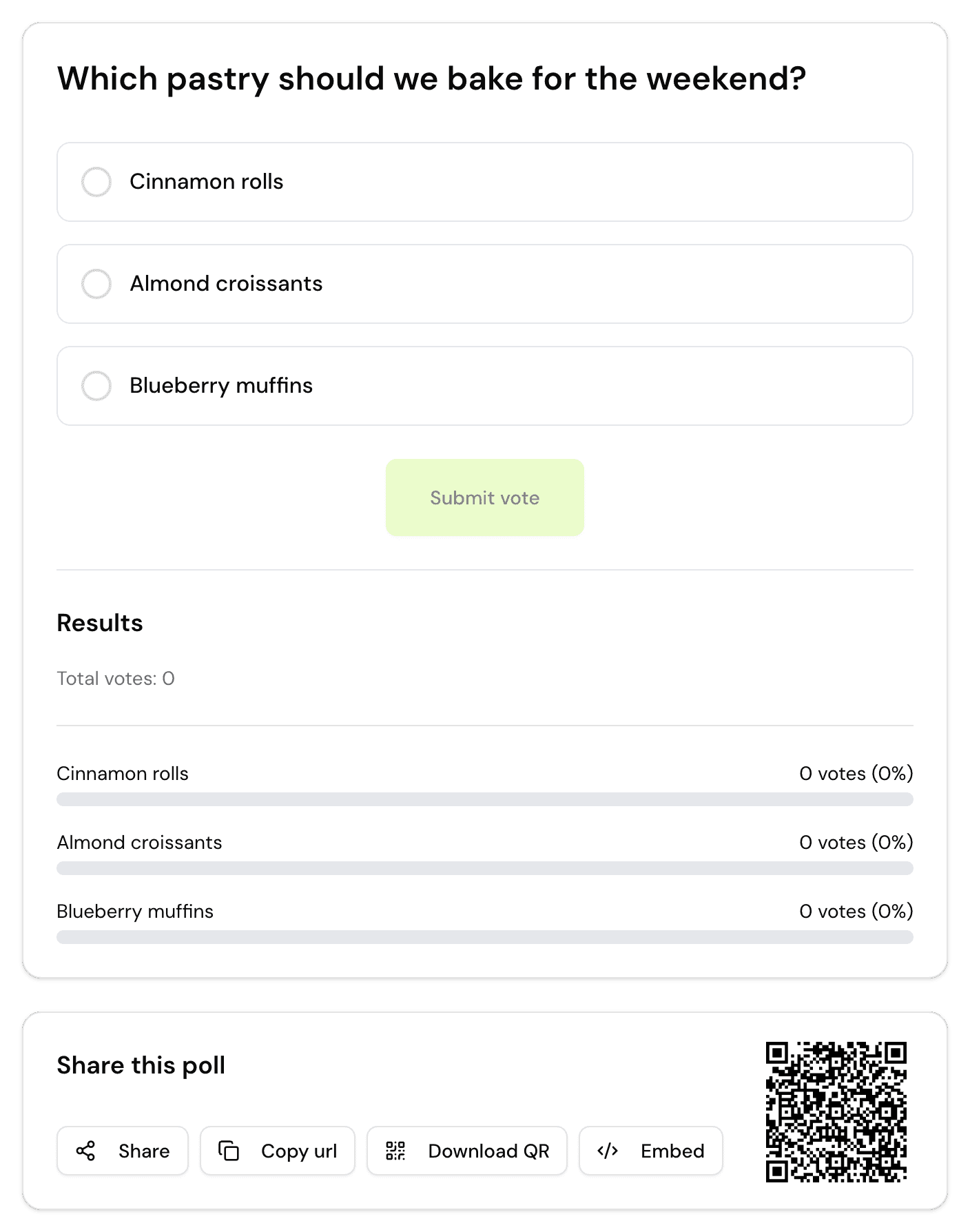
Ideas: ask about your numbers
Claude reads the same numbers as your dashboard: polls by status, votes in total and in the last 30 days, and the votes for each option. The useful part is what it does with them: compare, rank, sum up and put into words you can paste somewhere.
Who's winning, and by how much
"In my lunch poll, which option is ahead and by how many votes? Is it a clear win or too close to call?"
Any planOne poll
Compare polls
"Compare the results of my last three polls in a small table: question, total votes, top answer and its share."
Any planSeveral polls
Rank by turnout
"Rank my active polls by number of votes. Which three got the most, and which got none?"
Any planAccount
Account overview
"Give me a one-paragraph overview of my account: how many polls are active, total votes, votes in the last 30 days and my best poll."
Any planAccount
Report for your team
"Write a short update for my team newsletter from the results of the offsite poll, with the percentages for each date."
Any planShare
Slack-ready summary
"Summarise the results of the feature vote in three bullet points and a one-line decision I can post in Slack."
Any planShare
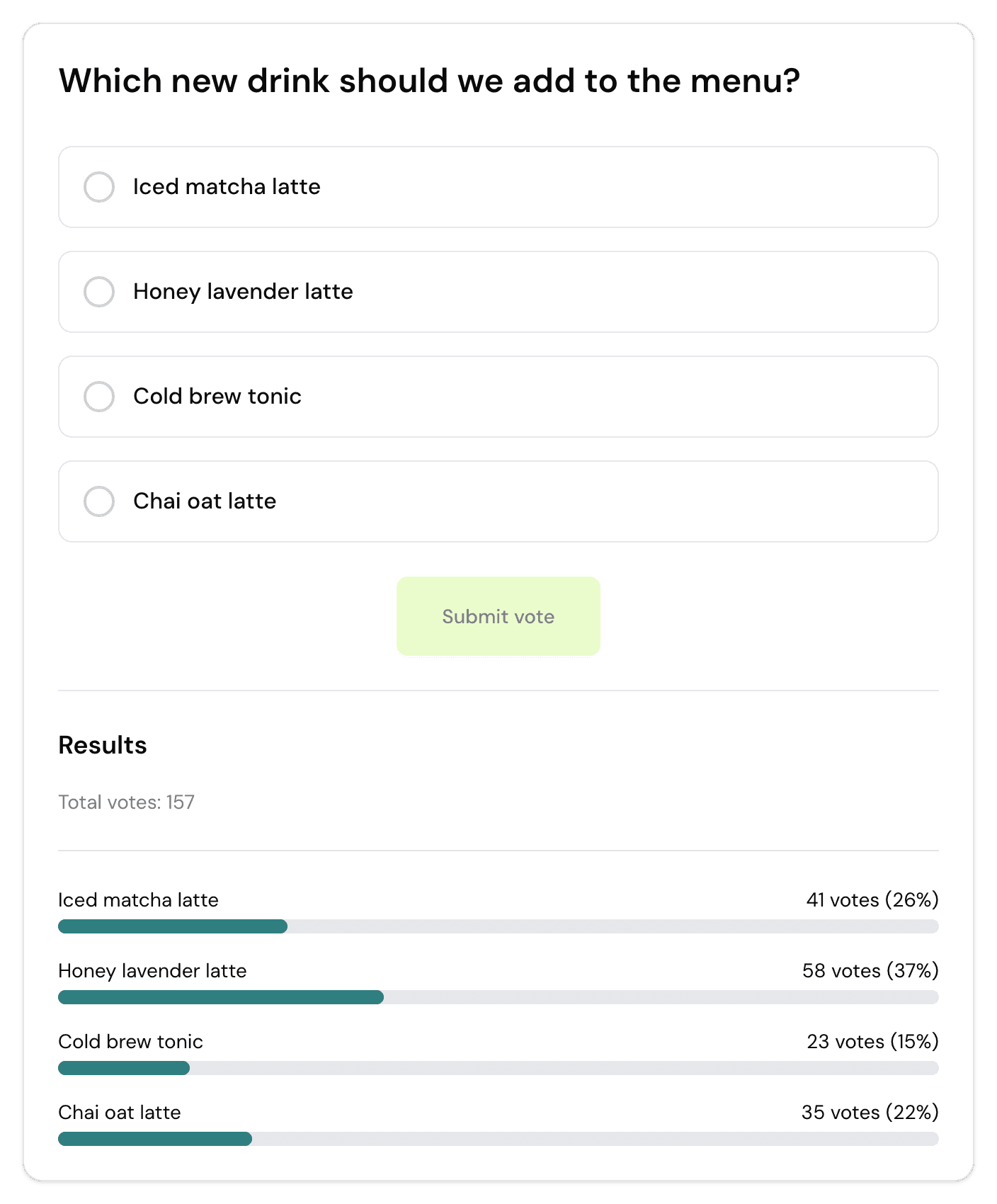
Ideas: ask for advice and next steps
Because Claude can see the results, it can do more than report them. Ask it what the numbers mean and what to do next. It bases the answer on your polls, not on guesswork.
Why so few votes?
"My customer poll has 4 votes after two weeks. Look at the question and options and tell me what to change."
Advice
Make it neutral
"Is the wording of my poll leading people to one answer? Suggest a more neutral version."
Advice
What to ask next
"Based on the results of my menu poll, suggest three follow-up polls that would help me decide what to put on the menu."
Ideas
Read a close result
"The vote is 48% to 52%. What would you do: decide now, extend the poll, or ask a narrower question?"
Advice
Fewer, better options
"My poll has 9 options and the votes are spread thin. Which options would you merge or drop next time?"
Advice
Where to share it
"I run a small café. Where should I put the QR code for this poll so more customers answer it?"
Ideas
Ideas: make it a routine
The setup pays off when the same question comes back every week or month. A few routines that work well:
- 1
Monday team pulse
"Create this week's pulse poll: 'How is your workload this week?' with Light, About right, Too much. Then compare it with last week's results." One poll a week, and Claude reads the trend across them for you.
- 2
After every meeting
"Make a yes/no poll: 'Was this meeting useful?' and give me the link to paste in the chat." Ask Claude for the result the next morning.
- 3
Monthly customer check
"Create a rating poll: 'How was your visit today?' and give me the QR code to print." At the end of the month: "How did the rating poll do, and what should I ask next month?"
- 4
Before a decision
"I need to choose between two suppliers. Draft a poll for my staff, show it to me, and create it when I say go." Then let Claude write up the result for the decision log.
What Claude can and can't touch
- Claude asks for your permission before it uses a tool, unless you've told it to always allow that tool. Reading tools are marked read-only, so allowing them is safe.
- A new poll goes live the moment it's created. Ask Claude to show you the question and options first, then say "go".
- There is no delete tool. Claude can't remove polls or votes.
- Results are vote counts per option. Claude never sees who voted, their email or their IP address.
- Treat the key like a password. Don't paste it into a chat; put it in the config as shown above. If it leaks, revoke it in Settings → API and the old key stops working at once.